 PAID4:46
Plays here · Open on youtube ↗
UnknownBrand-owned official channel; ownership proves product attribution but not a creator payment relationship: https://www.youtube.com/channel/UCCik71Dlopbh7i9gbvfHRuA4:46 · spoken hook
“Welcome to this tutorial on video generation in Scenario.”
The opening line · 0:00 · move: howto
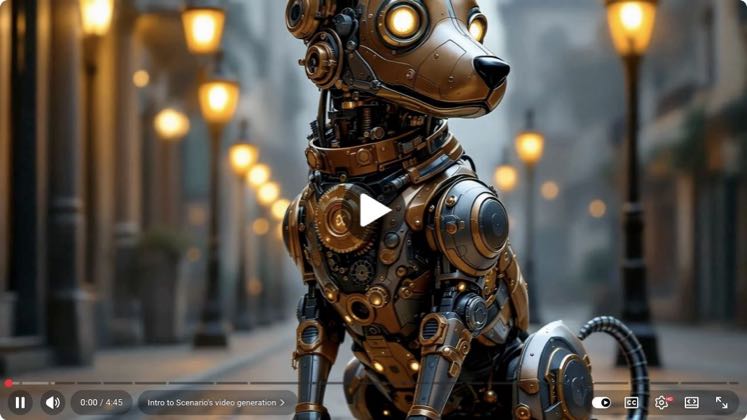
Walks from a still asset to controlled animation, comparing model choice, prompt assistance, start/end frames, loops, and reuse across Scenario's image toolchain.
3.2Kviews—likes↑2.1×vs their usual post · 1.6K views—creators ran this script
@Scenario · 3.7K followers · 25 of 30 recent posts mention Scenario · creator page →
The script9 lines · @Scenario
- 0:00Welcome to this tutorial on video generation in Scenario. With Scenario's video generation capabilities, you can animate your images in seconds with precise control and a workflow built for speed and productivity. Scenario offers a wide selection of cutting-edge video models, easily comparable, so you can quickly find the best fit for your style or use case. With advanced prompt assistance and intuitive controls, you can guide the animation easily. It's designed for fast, reliable workflows. In this walkthrough, you'll learn how to generate high-quality videos with precision, choose the right model for your goal, and shape your results using different inputs.
- 0:47You can access the video tool from any image in your workspace. Just click the three dot menu and select convert to video. It's also available directly from the main tool menu under video. Once you're in, a video model will be already loaded, visible to the top left. Click the model name to browse the full list of models available. You can switch models anytime depending on your needs. You can ask the Scenario AI bot for model tips or check the knowledge base to find the best fit.
- 1:20Video models work with text prompts, images, or both. Your input shapes the resulting motion, pace, or visual consistency. Some models also support preset styles or movement types. Here's a simple example using an image and a text prompt. As your image is already loaded, simply type something like, "A stylized skeleton with glowing blue eyes and rune marked bones tries to wink and scratch his head." The generated sequence will start with the original visual while animating the subject as described in your prompt.
6 more linesmembers read and copy every script on the site
@Scenarioyoutube · 3.7K followers · median 1.6K views · n=42best post8.1K5.2×views · for ScenarioUnknown Brand-owned official channel; ownership proves product attribution but not a creator payment relationship: https://www.youtube.com/channel/UCCik71Dlopbh7i9gbvfHRuAOpen creator →Views and likes are public counts at capture time. The multiple compares this post with the creator’s own recent median, not a claim about what caused its reach. Read the methodology →