Loading the library…
 AFFILIATE5:01
The anchor — the post this playbook is read from.
Open the post page →
Playbook
Prompted image to workflow video
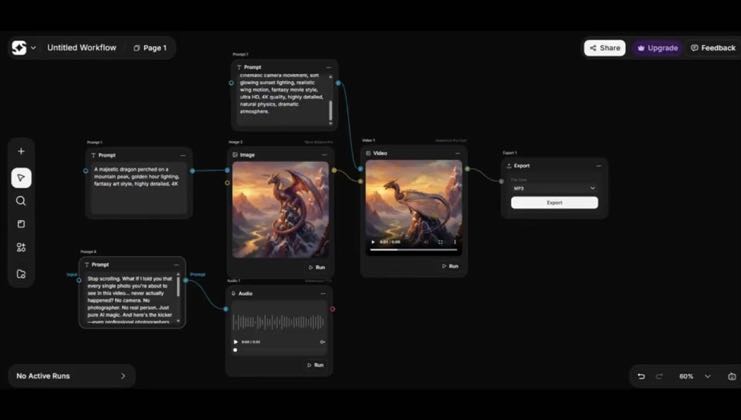
Creators generate an image from a prompt in ImagineArt’s workflow, connect it to a video node, and run a second prompt to animate it.
Who runs it Three non-owned YouTube creators.
15Kviews tracked · 3 posts3creators ran it14.6Kbest post
affiliate1 of 3 posts say unknown
Not dissected yet. The captured frames and transcript are the available evidence.
The script41 lines · 5:01 · @AI Zayan for ImagineArt
- 0:00Hello everyone. Welcome back to my channel.
- 0:03In today's video, we're exploring a powerful all-in-one AI tool called Imagine.Art.
- 0:10If you've ever wanted to create stunning images, videos, and much more just by typing a text prompt,
38 more linesmembers read and copy every script on the site
These moves recur across the cited posts. Wording and execution vary; this is not one combined video timeline.
- Enter an image prompt and connect it to an image node
Read the source quotes
First, I click on the prompt button. A pop-up appears in the workflow where I can enter my prompt. For example, I want to create a product advertisement, so I write my prompt here. Next, I click on the node section and choose what I want to create. I select image and a new box appears in the workflow.
Open the source post →my add prompting my prompt day over there so i'm copying my prompt right now and i'm going to place this in the prompt box which i've linked in the workflow to generate my image right now
Open the source post →Here, the first thing we'll do is write a prompt to generate an image. Simply enter your prompt, connect it to the image node and generate your AI image.
Open the source post → - Run the workflow to generate the image
Read the source quotes
One important thing to remember is that you must connect the nodes together. So, I connect the prompt node to the image node and then I click on the run button. Now, the processing starts and after a short wait, the result is ready. As you can see, our product image is generated according to the prompt.
Open the source post →so i'm clicking generate right now so it's going to generate and i'm using imagine add to generate my image right now so i'm generating right now so many the image is going to be generated let's wait for it okay let's wait for it is generating right now
Open the source post →Now we will click on node and select image node, then we'll link prompt node to image node. After connect, we'll click on run here. We can select number of images we want to generate.
This playbook belongs to a structure shared across brands. Its member videos count toward each structure’s total. Open a structure to compare the grouped playbooks.