Loading the library…
 8:46
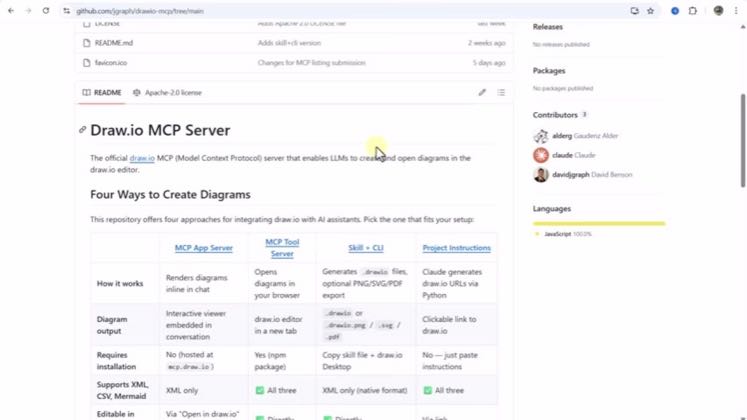
8:46The anchor — the post this playbook is read from.
Open the post page →
Playbook
Generate diagram code and edit it in draw.io
Creators request diagram code from an external AI and open the result in draw.io, using either a file import or an automatic handoff.
Who runs it Non-owned YouTube creators Learn With Liam, Mathias Does Tech, and TechyTacos.
141.9Kviews tracked · 3 posts3creators ran it88Kbest post
organic2 of 3 posts say unknown
Not dissected yet. The captured frames and transcript are the available evidence.
The script82 lines · 8:46 · @TechyTacos for draw.io / diagrams.net
- 0:00In this video we are going to explore how we can create high level architectural diagram using
- 0:04mcp server capabilities of draw.io and xcli drop and to interact with these mcp servers we are
- 0:10going to use clod desktop and wizard studio code so let's get started with that so first thing
79 more linesmembers read and copy every script on the site
These moves recur across the cited posts. Wording and execution vary; this is not one combined video timeline.
- Request a draw.io-compatible diagram from an external AI
Read the source quotes
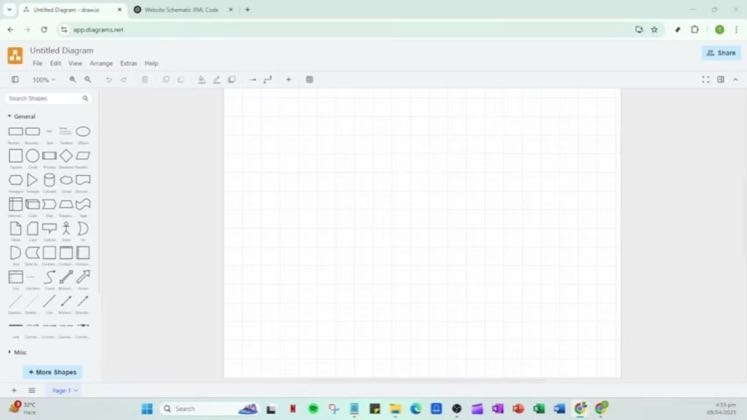
Now in the chat GPT interface, input a prompt asking for an XML code to create a diagram. The prompt should include all the details necessary to generate the structure you envision.
Open the source post →you want to access chatchy pt and you want to use the following prompt. Now, you want to say, can you help me write an XML code about a workflow chart on developing software? And make sure that I can import this in draw.io.
Open the source post →then I can just say use draw.io skill to create high level payment design diagram
Open the source post → - Obtain the generated diagram code
Read the source quotes
After chat GPT generates the XML code for your diagram, find the option to copy this code directly from the chat GPT interface. This is usually straightforward and there should be a copy button you can click on. Make sure you've copied the entire snippet to avoid any missing parts when transferring it later. Once you've copied the XML code, open up a notepad or any plain text editor you prefer. Paste your copied code into the notepad.
Open the source post →So once you have that, click on copy code and you want to go and just open up a notepad here, paste your XML code, click on file, the top left, click on the save as option. And you want to go and make sure that you choose the DCVS file type here to all false. And you want to make sure that you include the dot XML extension at the very end.
Open the source post →you can see like it has started creating the diagram in the XML format
This playbook belongs to a structure shared across brands. Its member videos count toward each structure’s total. Open a structure to compare the grouped playbooks.